The two libraries hold the building blocks your form is made of. Anything you create here can appear on the form for any registrant type.
They belong to your account, not to one event. The menu calls them Cross-Event Libraries for that reason: write a question once and every event you build can ask it, and every answer to it lands in the same column of your reports. Edit an item here and the change reaches every event still using it.
- A tile wears an Also at chip naming the other events using it.
- Deleting is refused while any event still uses the item or question, and we name the event that does.
- What an event decides stays with the event: how many are available, which group it sits in on this form, and any price this event charges. Copying an event carries all of that across and points at the same library entries.
Items and groups
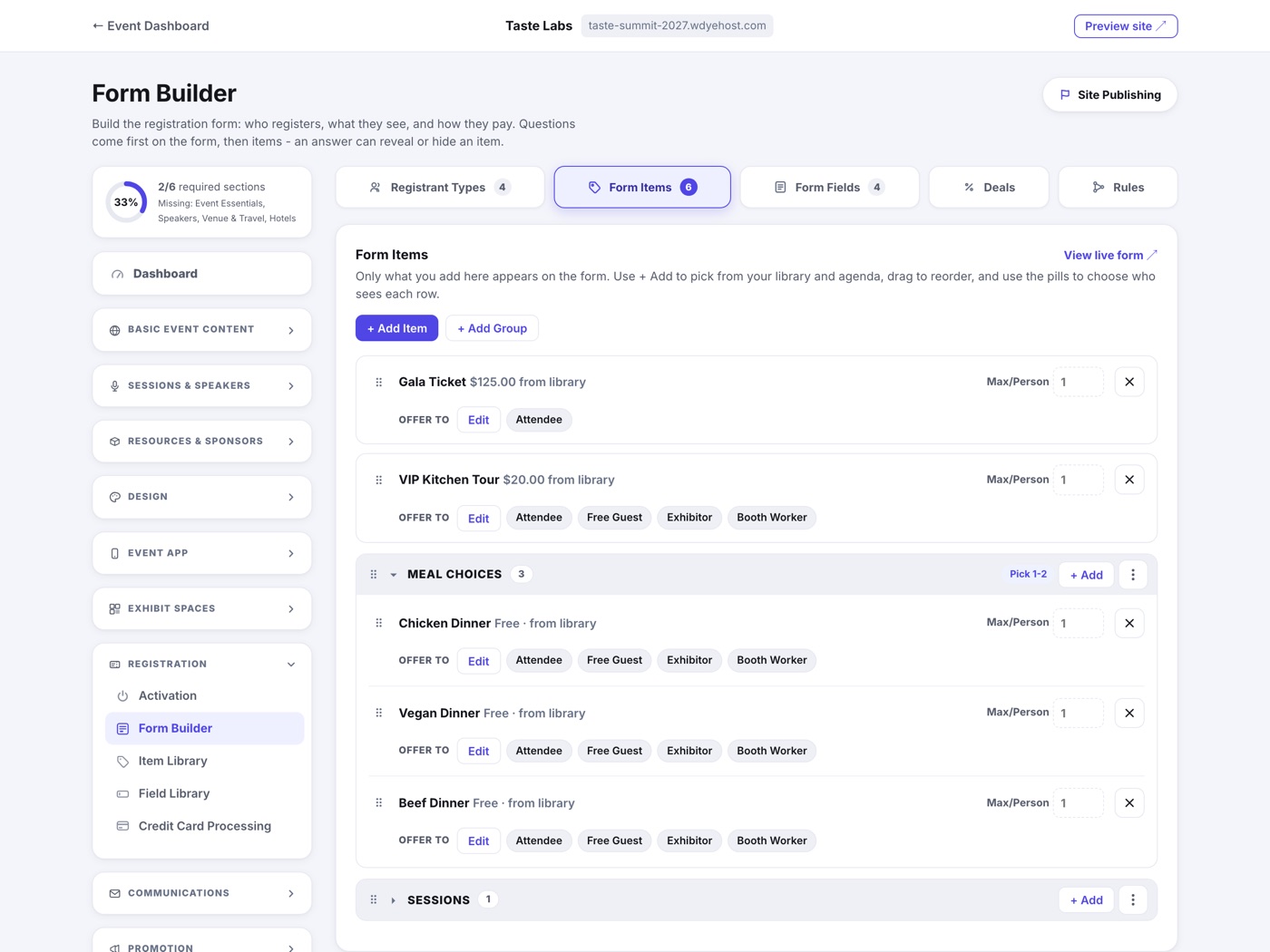
An item is anything someone can select or buy: a ticket, a gala dinner, a t-shirt, a workshop seat. There are no fixed item types to file things under. Instead, you name your own groups and the form presents items under your headings, in your order. You are never forced to organize - an event that just needs a flat list of add-ons can leave every item loose.
- Use + Add Item to pick from your library or create something new. New items land as loose tiles at the top of the form, with no heading.
- Use + Add Group to create a heading like Meal Choices or Add-Ons, with an optional pick minimum and maximum.
- Drag items into the group you want. The hovered group lights up so you can see exactly where the item will land, and a group's own + Add button files new picks straight into it.
- Drag whole groups to set the order of the form. The built-in Sessions block moves like any other group.
- Loose tiles hover with a move cursor and a highlighted border - drag one into a group, or drag a grouped item back out to make it loose again.
A group can require picks: set a minimum, a maximum, or both, and the form shows the rule (Pick 1-2) and enforces it. The three-dot menu on each group holds the rest: offer the whole group to every registrant type, edit the group, or remove it. Deleting a group never deletes items; they just return to the loose tiles at the top.
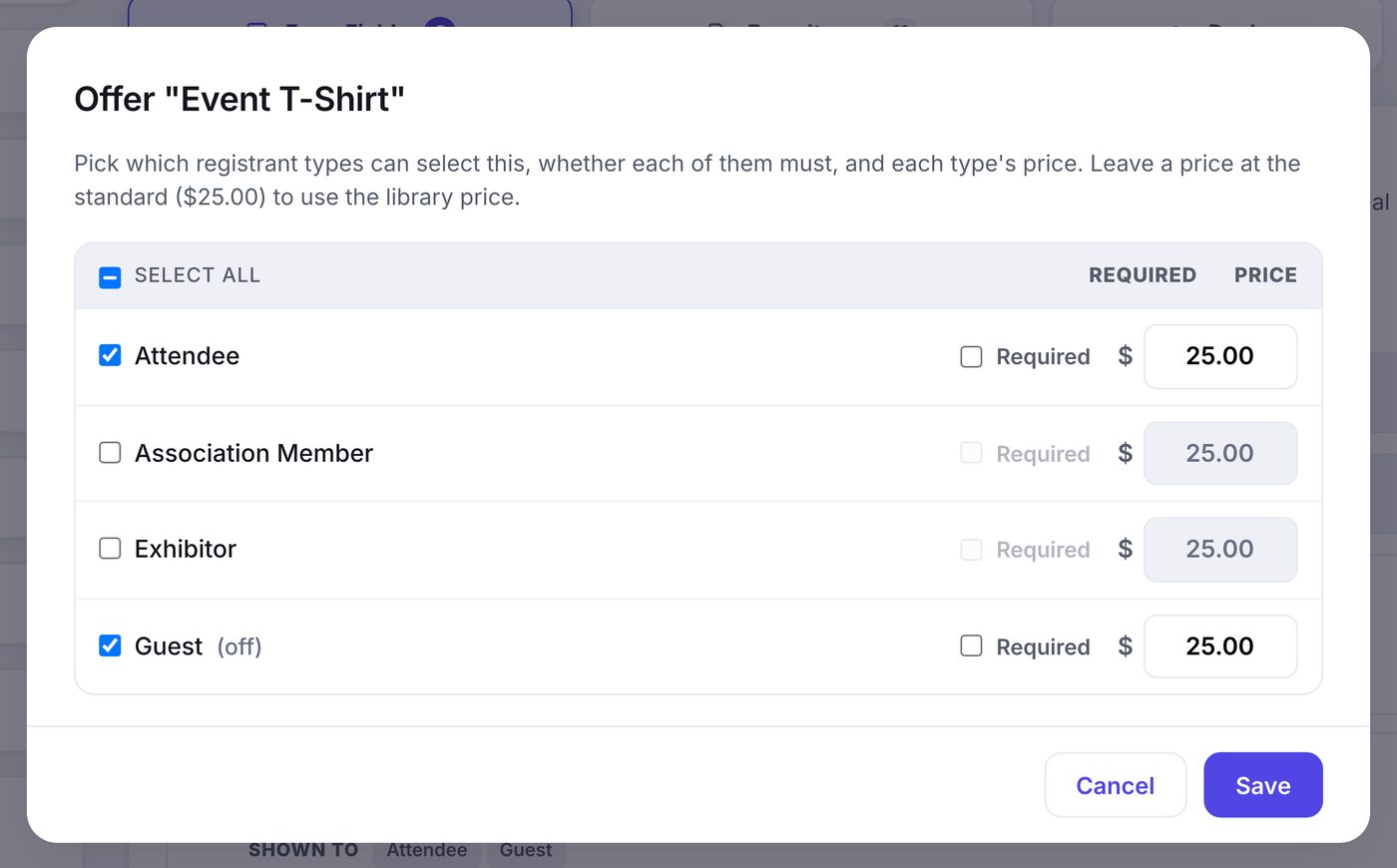
Every row on the form board carries one By Registrant Type link. It chooses which registrant types can select the item, whether each of them must, and what each one pays. Leave a type at the library's standard price to use it. See The Form Builder.
Each item can also carry a private tag, an internal code like BANQ-24 that never shows to registrants but rides on every order line, so your reports can slice sales your way.
Item Photos
Give an item a photo under Photo in its editor: a shirt, a pin, the gala room. On the registration form it shows as a small thumbnail beside the item, and tapping the thumbnail opens the photo full size with a Close button. Tapping the photo never ticks the item. Like the rest of the item, the photo is shared by every event that sells it, and Remove image takes it off.
Item Type
Every item is one of three kinds, chosen at the top of its editor:
- Non-Merchandise admits one person: a ticket, a banquet seat, an entry fee. One per registrant.
- Merchandise is something a registrant can buy more than one of: shirts, pins, extra programs.
- Sponsorship is a sponsorship package. Buying it grants the Sponsor Portal and adds the company to your Sponsors list as Needs Approval. One per registrant, and it never counts as a person in a party.
A Sponsorship carries the Sponsor Level it buys at this event; if a registration holds more than one, the highest level wins. It wears a Sponsorship chip with its level on its Item Library tile and on its row in the Form Builder. So one shared Sponsors & Exhibitors registrant type works: whoever picks the Gold Sponsorship gets the Sponsor Portal at Gold.
Sponsorships With No Level
Some sponsorships belong to no level: the bags, the lanyards, the registration desk. Set the item's Sponsor Level to No level (stand-alone). Whoever buys it still gets the Sponsor Portal and joins your Sponsors list for approval, and once you show them they appear below the levels as Supporting Sponsors, on the site and in the event app. The item's name is the name of the sponsorship: the app shows it when someone taps the sponsor, and the company sees it in its portal.
If a registration holds a level and a no-level sponsorship, the level wins.
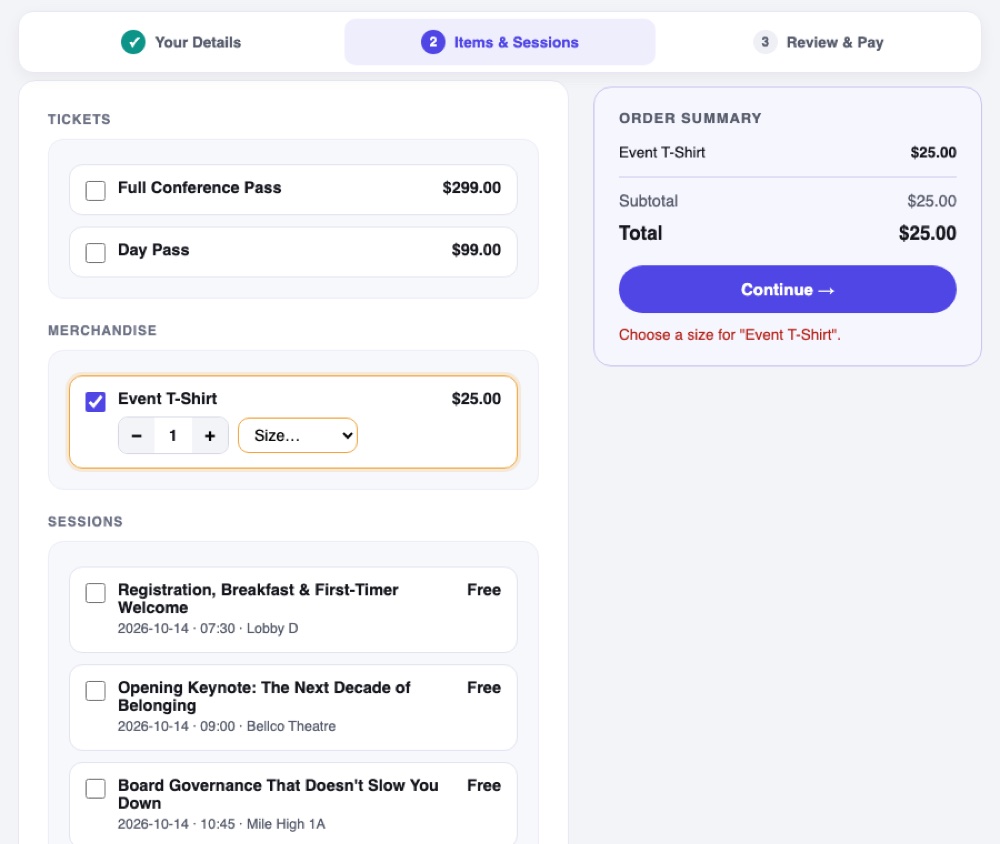
When an item offers sizes or variants, choosing one is required. If somebody ticks the item and tries to move on without picking, the step stops, the item is ringed in amber, and the page scrolls them to the menu that needs an answer.
Sessions from your agenda can be sold too, with per-session capacity, so a workshop stops selling the moment it fills. Sessions stay in their own block; the block itself drags anywhere among your groups.
Field Library
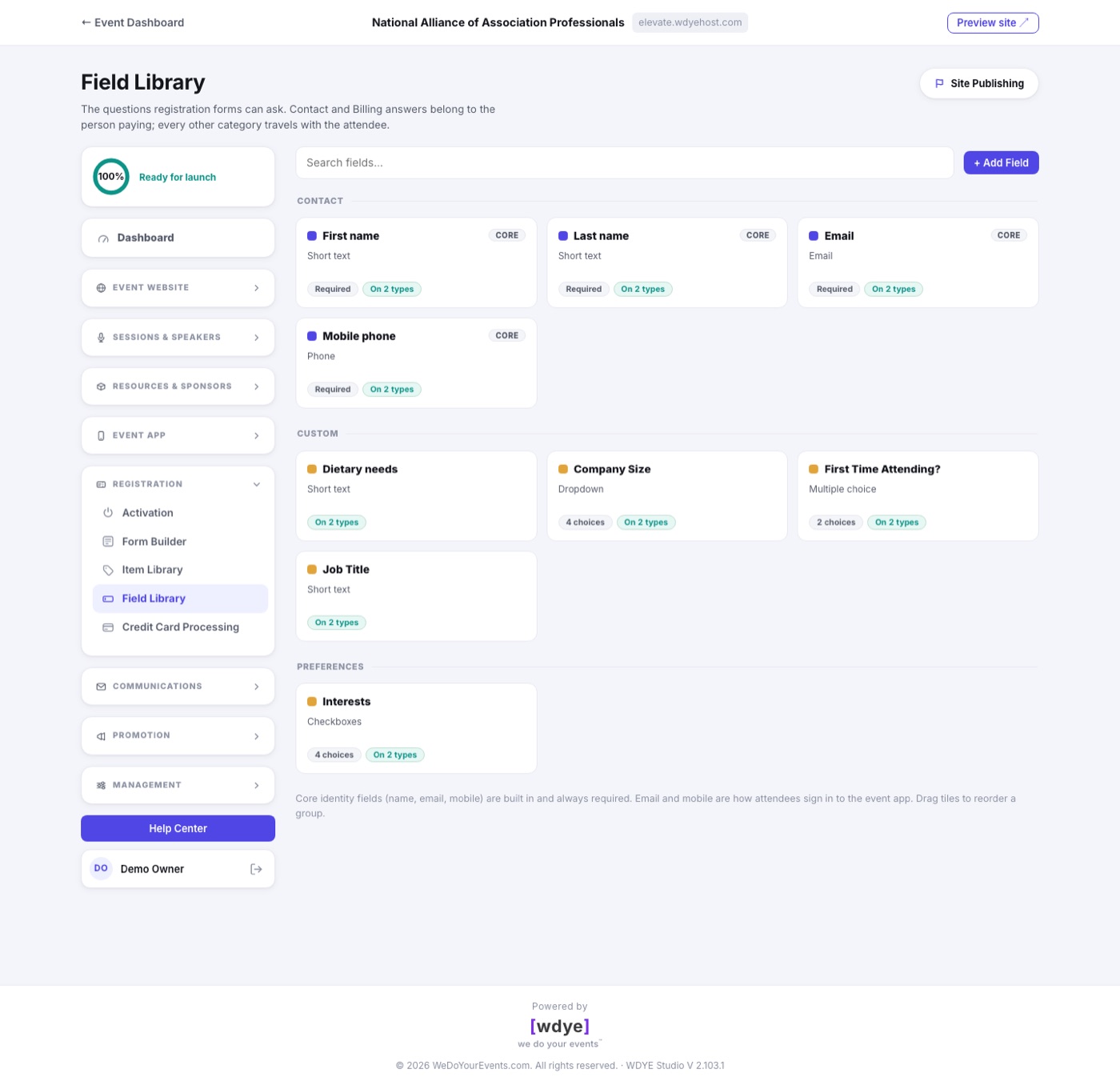
Fields are the questions the form asks: text answers, choice lists, checkboxes, and more. Mark a field required if the form must not submit without it, and use Required by Type in the By Registrant Type modal when only some people have to answer.
A question can also be attached to an item, so it is asked only of the people who buy that item, inside its own box on the form. A shirt asks a size, a banquet seat asks a meal choice, and nobody else ever sees either. See Questions That Ride on an Item.