
The Form Builder is the heart of registration. Its tabs walk you through the form in the same order your attendees experience it.
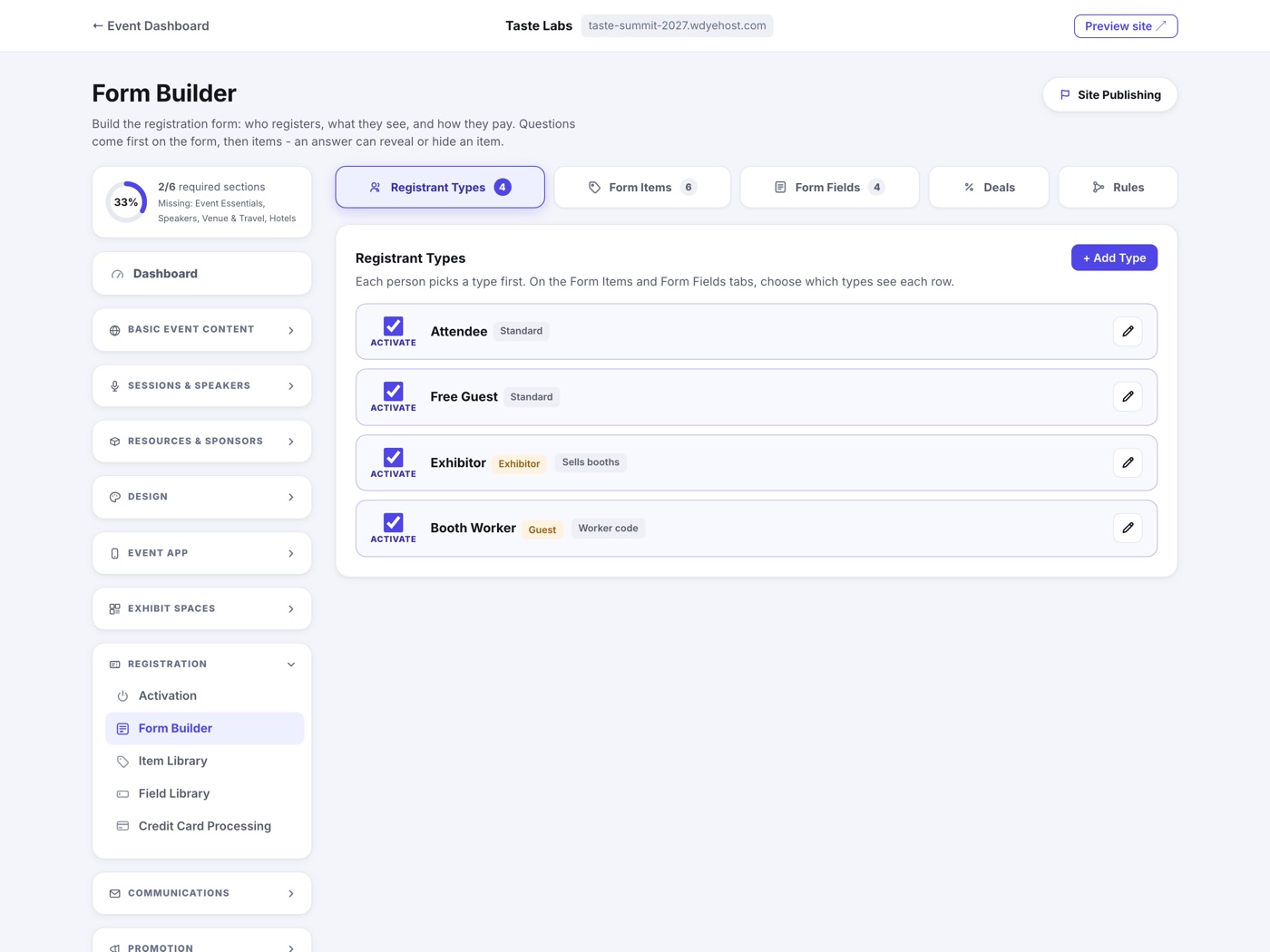
Registrant types
Registrant types now have their own page: Registrant Types, just above the Form Builder in the menu. That is where you add a type, set its classification, and price it. See Registrant Types and Price Tiers.
The Form Builder is where you decide what each of those types actually sees. Its tabs walk the form in the order your attendees meet it: Form Items, Form Fields, Deals, Rules.
Form items and form fields
The Form Items tab decides what each type can buy, organized under group headings you name yourself, in the order you want it presented. The Form Fields tab does the same for questions. Both work from the libraries, so one item or question can serve many types and many events.
One link sets everything per type
Every row on the form board, whether it is an item, a session or a question, shows its registrant types as plain chips and carries one By Registrant Type link. That link opens the same modal everywhere, and it is the only place these settings live.
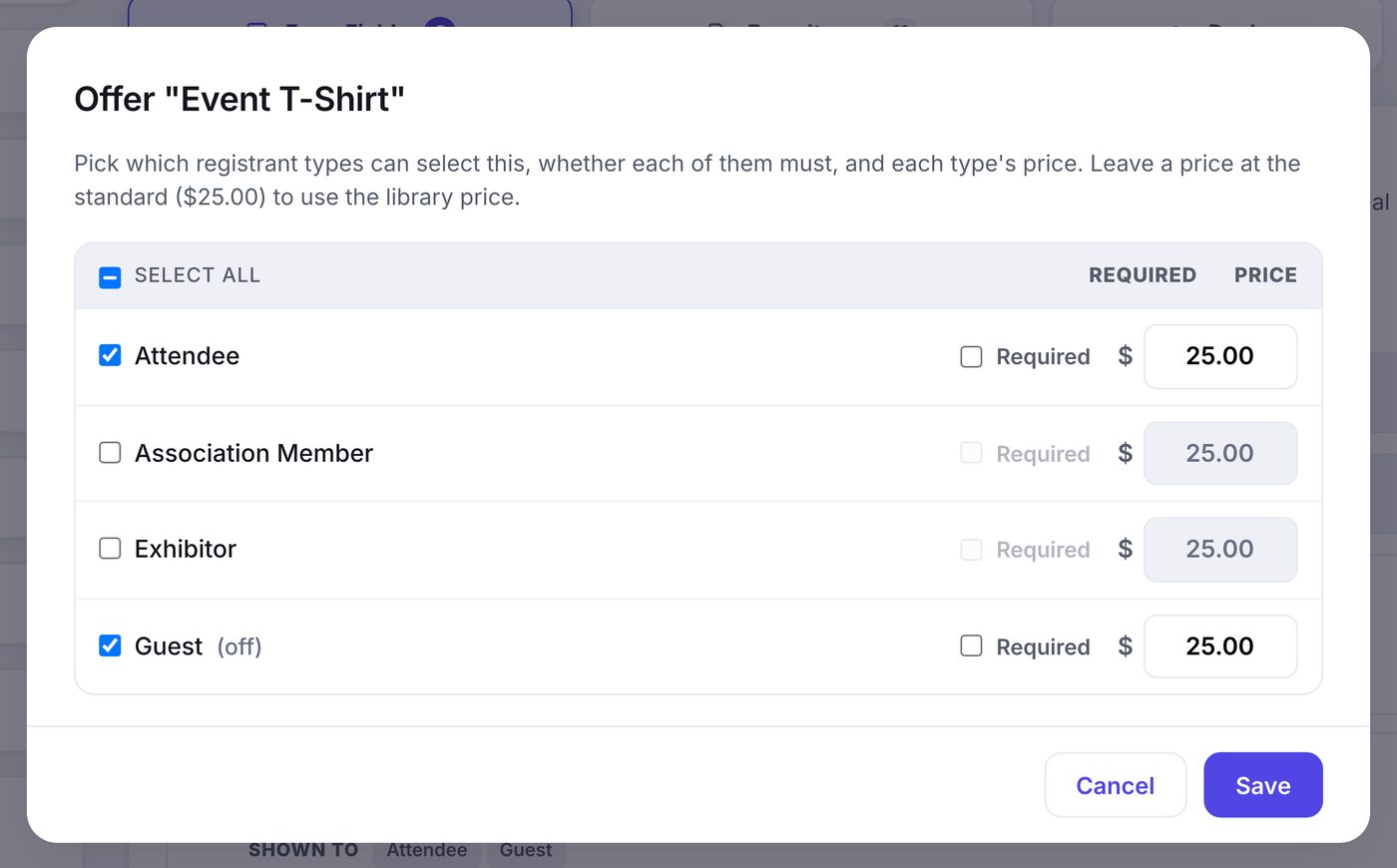
- For an item: which types may select it, whether each of them must, and each type's price. Leave a price at the library's standard to use it.
- For a session: which types may select it, and the price for each.
- For a question: which types are asked it, and whether it is required for each.
- On the board itself, a starred chip means required for that type and a bold price means that type pays a different price.
- For Email and Mobile in Identification: what the Registrar and the Attendee each give, per type. The next section explains.
Who gives their contact details: Registrar and Attendee
Every registration has two people in it, and often they are the same person. The Registrar is whoever fills in the form and pays. The Attendee is the person being registered. A parent registering a child, or an assistant registering an executive, is one Registrar and a different Attendee. Someone registering themselves is both.
In the Form Fields tab, the Identification section holds the four core fields. First name and last name are always asked of both people, because a roster and a badge need a name. Email and Mobile are yours to set, per registrant type and per person: each of those rows shows a Registrar line and an Attendee line of type pills. A starred pill means required for that type, a plain pill means optional, and no pill means the field is not asked at all.
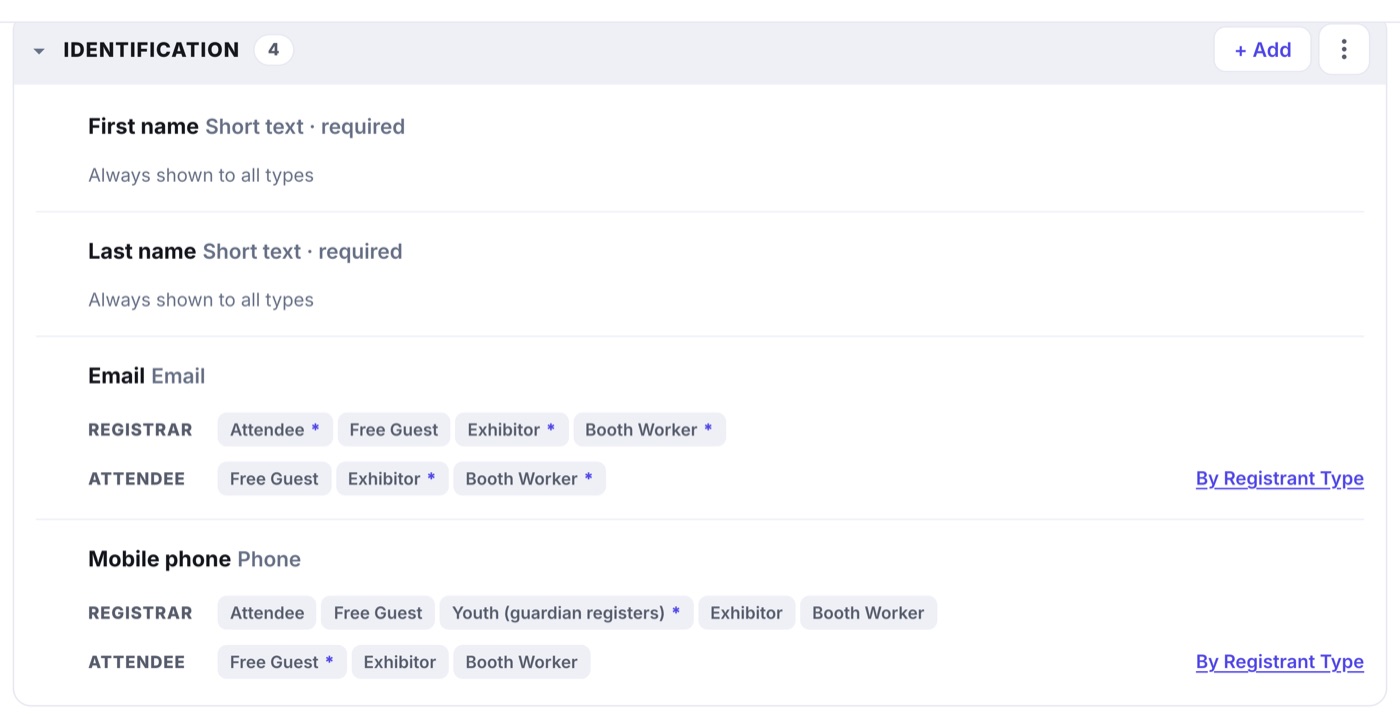
- Open Registration, then Form Builder, then the Form Fields tab.
- In Identification, click By Registrant Type on the Email row or the Mobile row.
- For each registrant type, pick Required, Optional or Off under Registrar, and again under Attendee.
- Save. The pills on the row update, and the public form follows from its next load.
- Off means not stored. A field switched off for a type is never asked, and a value that arrives anyway is discarded. That is the setting for a minor, or for a high-profile attendee who does not want personal details in the system.
- The Registrar's email is where the receipt, the ticket and the modification link go. Switch it off for a type and a registration with no email anywhere gets none of those. The modal says so under the table.
- Group registration follows the Attendee settings for every extra person on the order.
Questions you fill in yourself
A question can be marked Internal use in the field editor. The public form never asks it: it appears as a box on the registrant's own record for your team to fill in. The ordinary type chips still decide whose records carry it, so a note you only keep on VIPs stays off everyone else.
Deals and rules
- Deals holds coupon codes, buy-this-get-that offers, scheduled price increases, and Group Registration & Discounts.
- Rules connects answers to items: an answer can reveal or hide an item, so the form reacts to each person as they fill it in.
Group Registration has its own On and Off switch. Off means one registration per checkout: nobody can add colleagues to their own order. Turning it off leaves your discount tiers exactly as you built them, sitting there disabled, so switching back on costs you nothing.