
A shirt needs a size. A banquet seat needs a meal choice. A workshop needs to know whether somebody has done the prerequisite. None of those belong on the main form, where everyone would see them. Attach the question to the item instead, and it is asked inside that item's own box, only once somebody picks it.
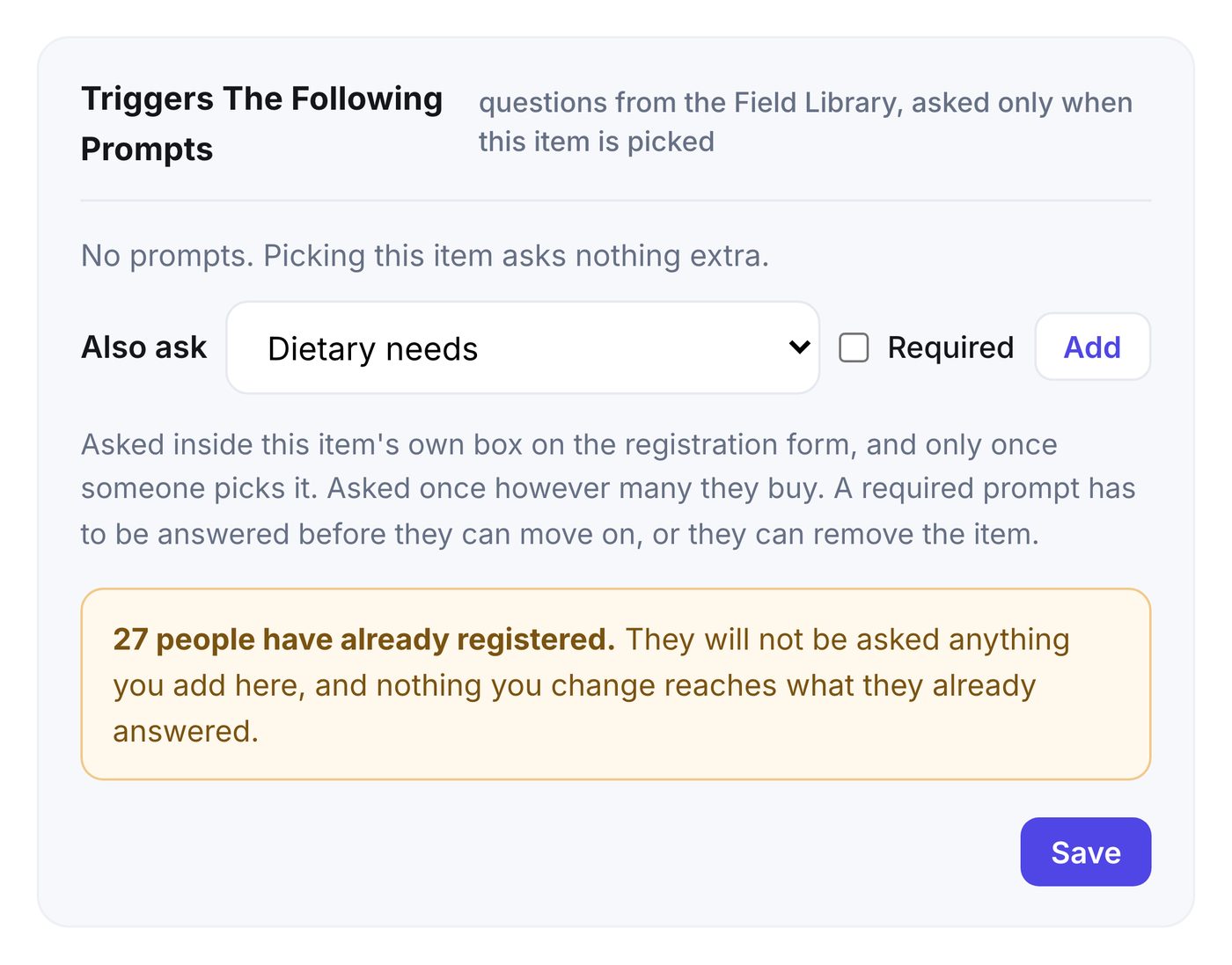
Adding a prompt
- Open Registration, then Form Builder, and click the pencil on the item.
- Scroll to Triggers The Following Prompts.
- Pick a question from the Field Library in the Also ask list.
- Tick Required if they cannot move on without answering it.
- Click Add, then Save.
- The question is asked once, however many of the item they buy.
- A required prompt has to be answered before they can continue. Removing the item is the other way out.
- The questions come from the Field Library, so the same question can ride on several items and every answer lands in one column of your reports.
- Stop asking this takes the prompt off the item. Answers already given are kept.
Adding a prompt after people have registered
A form change cannot reach back to a registration that is already placed, so the panel tells you how many people have registered and warns you plainly: they will not be asked, and nothing you change here touches what they already answered.
Rather than mail everyone, we surface the gaps where you already look:
- The item's prompt row wears an amber unanswered count.
- Export the registrations from the Dashboard. A Missing Answers column names the questions each registration still owes, and the question's own column reads NEEDS ANSWER for exactly those people.
- A blank cell means that person was never asked, which is a different thing and now looks different.
From there you chase whoever you want, in your own words. You can also fill a blank in yourself: open the registration, answer on their behalf, and the record notes who did it.