
The event app is a website, not a download. Attendees open a link or scan a code and it works straight away, on any phone. There is nothing to approve in an app store and nothing for them to install.
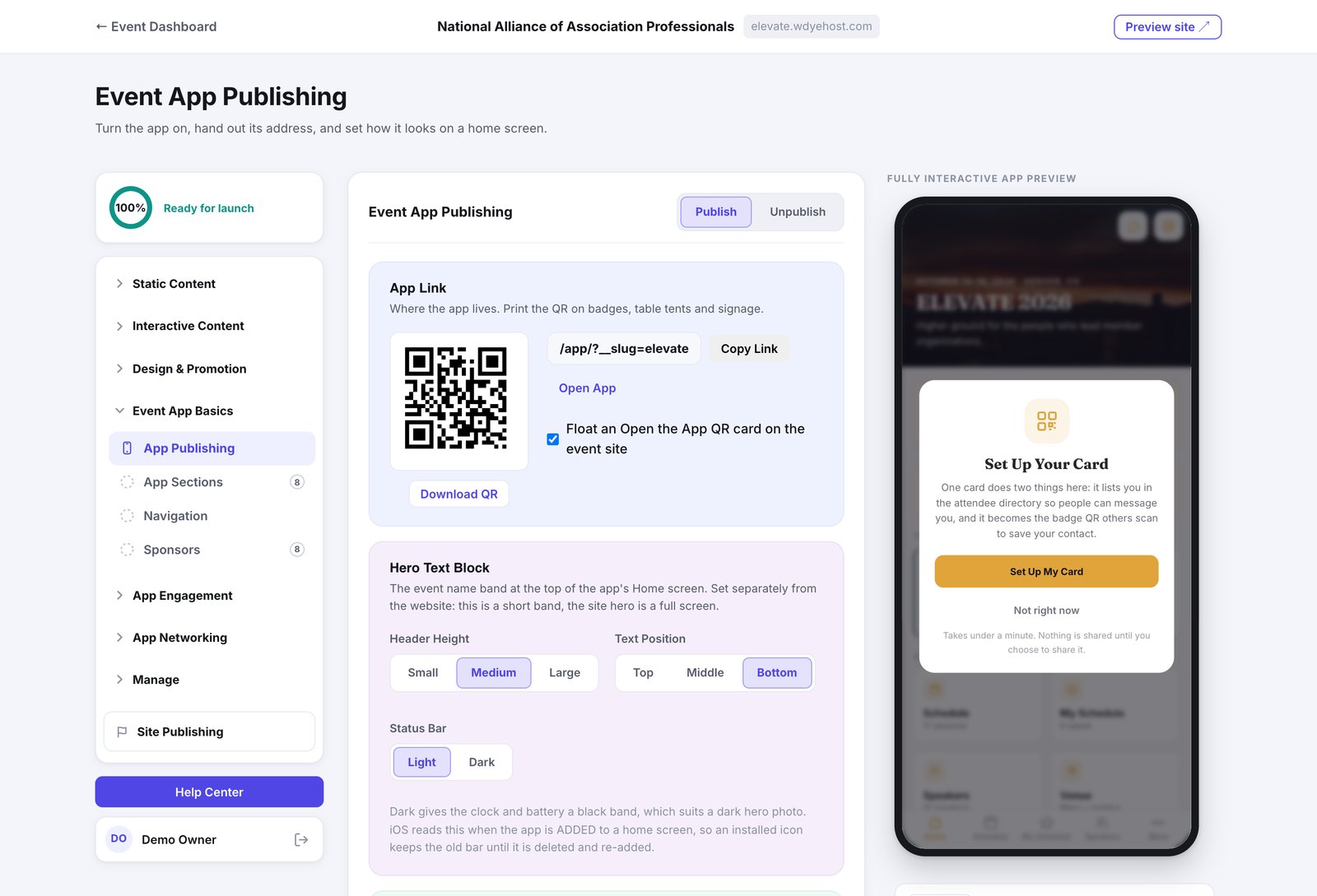
Publish it
- Open Event App Basics › App Publishing.
- Click Publish.
- Use Copy Link or Download QR to get the address out to attendees.
Unpublish closes it again. Nothing is lost: everything you have set up stays exactly as it was, ready for the next time you publish.
Getting it into attendees' hands
- Print the QR code on badges, table tents and signage. A phone camera opens it directly, with no app in between.
- Leave Float an Open the App QR card on the event site ticked and your website carries the code too: a tap target on a phone, a code to scan on a desktop.
- Email the link. It is an ordinary web address.
The home screen icon
Attendees can add the app to their home screen, where it behaves like any other app. What you set here is what they get: upload an App Icon (it falls back to your event logo), set the label under it, and pick the backdrop colour behind a transparent logo.