
Showcase your sponsors, grouped by level (e.g. Platinum, Gold, Silver). You set up the levels, then add sponsors to each.
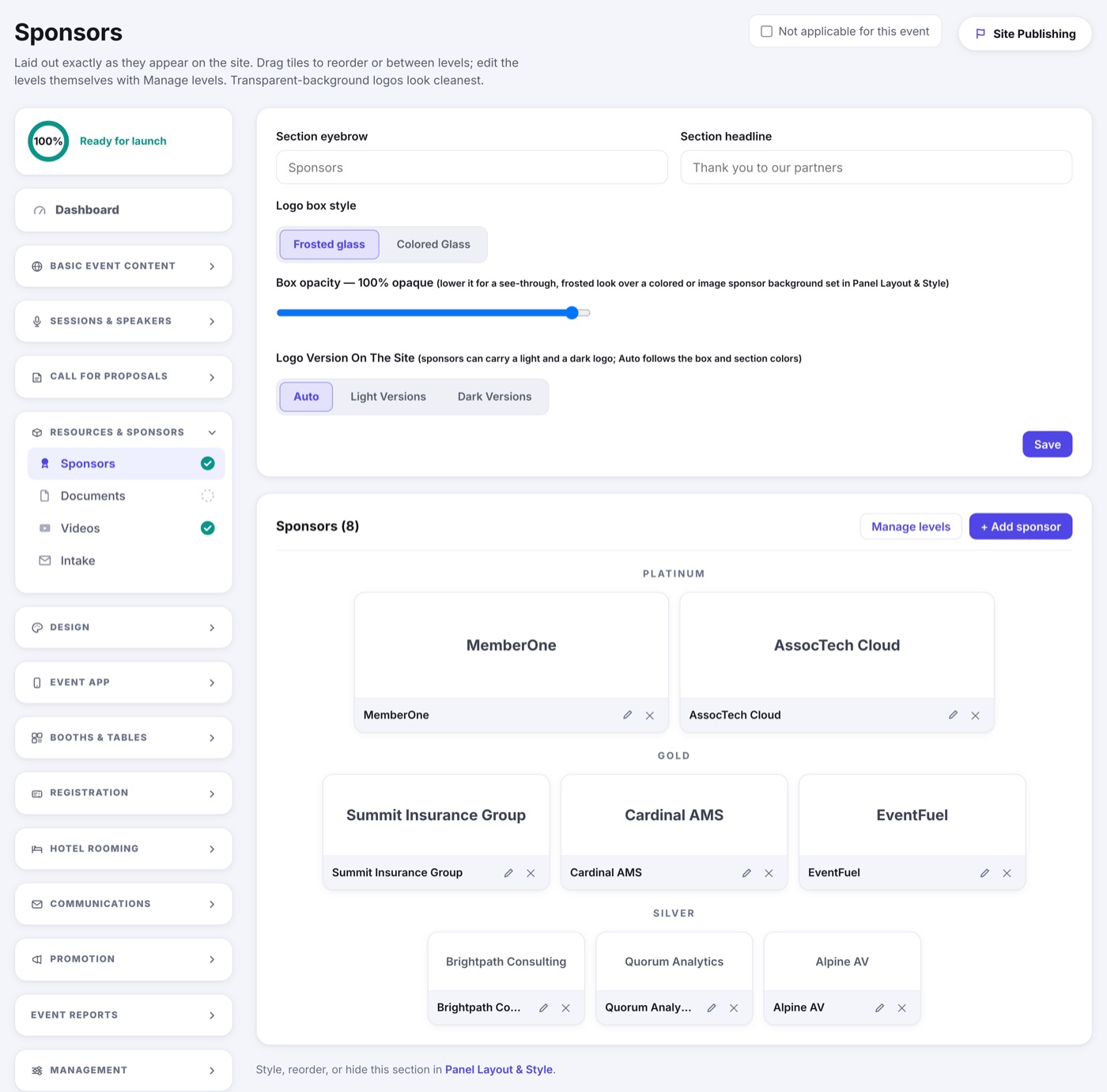
- Open Sponsors.
- Click Manage levels to create your tiers and their order.
- Click Add sponsor, choose a level, and upload the logo.
- Save. Sponsors display grouped by level, biggest tier first.
Sponsors Who Edit Their Own Listing
A sponsor with a Sponsor & Exhibitor Portal keeps their own name, website, description and logos up to date, and the changes land on their tile here. Those tiles wear a small Portal chip; click it to open the Commercial Portal page.
- A company that buys a Sponsorship item when it registers joins this page as Needs Approval, hidden, at the item's Sponsor Level. Approve it to show it.
- The level, the approval and whether a sponsor shows stay yours. The portal never changes them.
- To give a portal to a sponsor you added by hand, use Grant Portal Access on the Commercial Portal page.
In a sponsor's editor, Booth / location comes from the floor map when the sponsor bought a booth, and cannot be typed over there; change the booth on the map instead. For a sponsor with no booth, type where to find them.
Sponsors With No Level
Under your levels sits a No Level group, for stand-alone sponsorships like the bags or the registration desk. On your site and in the event app these sponsors show below every level, headed Supporting Sponsors, once you approve them and switch them on. Drag a tile into the group, or choose No level in a sponsor's Level menu, to put a sponsor there. A sponsor who bought a sponsorship shows what they bought in their editor.