What someone buys grants the portal. A registration that includes a Sponsorship item gets the Sponsorship tab, and one that buys a booth gets the Exhibit tab, automatically. Their confirmation email carries a private link to their company's portal, and what they write there appears on your event site exactly as they write it.
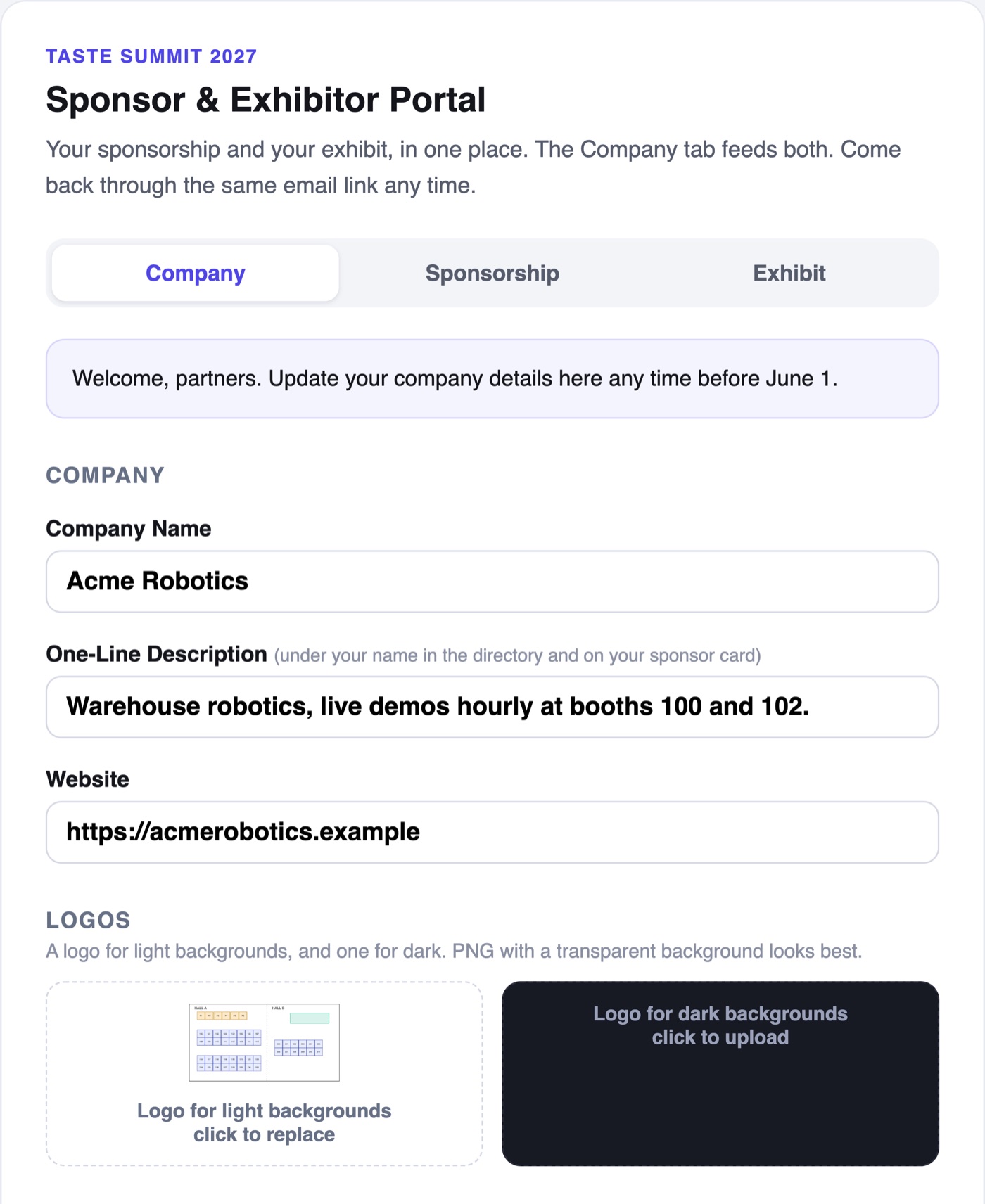
One Page, One Tab per Area
- Company is on every portal: the company name, a one-line description, the website, a logo for light backgrounds and one for dark, and a private contact name for you. It feeds both the sponsor wall and the exhibitor listing, so the two can never disagree.
- Sponsorship appears when the company sponsors. It names the sponsorship they bought and its level (or that it is listed below the levels), shows whether you have approved them yet, and lets them drag and zoom their logo inside its tile on the sponsor wall.
- Exhibit appears when the company exhibits. It holds their booths, the worker pass code with its running count, and the full listing: about, categories, public contact, social links, photos and a brochure.
A company that only sponsors sees two tabs, never an empty third. The page title follows what they hold: Sponsor Portal, Exhibitor Portal, or Sponsor & Exhibitor Portal.
What Stays Yours
The sponsor edits their name, website, description and logos, and those flow onto their sponsor tile. The level, approval and whether they show on the site stay yours, on the Sponsors page. A company that registers as a sponsor joins your Sponsors list as Needs Approval, at the level the registration bought.
One Company, Many Registrations
A second registration from the same email address joins the company's existing portal: a booth bought in June and a sponsorship bought in August land on one page. If the address really belongs to someone else, split that registration off on the Commercial Portal page.
- The link works all event long. There is no password to lose.
- Lost the email? The portal's own page has an Email Me My Link box: it sends the link to the address they registered with.
- Or they sign in at portal.wdyestudio.com: choose Sponsor & exhibitor sign-in, enter the email they registered with, and the one-time code we email opens a list of their events with an Open Portal button for each. Only a live portal counts: a canceled registration gets no code.
- A canceled registration turns the link off. Their details stay, and you can reinstate the same link.
- Links in older booth emails still work: they forward to the new portal.