
Custom Blocks are your own sections: an eyebrow label, a headline, rich text, and an optional image on the left or right. Add as many as you like and place each one anywhere on the page from Layout & Paging.
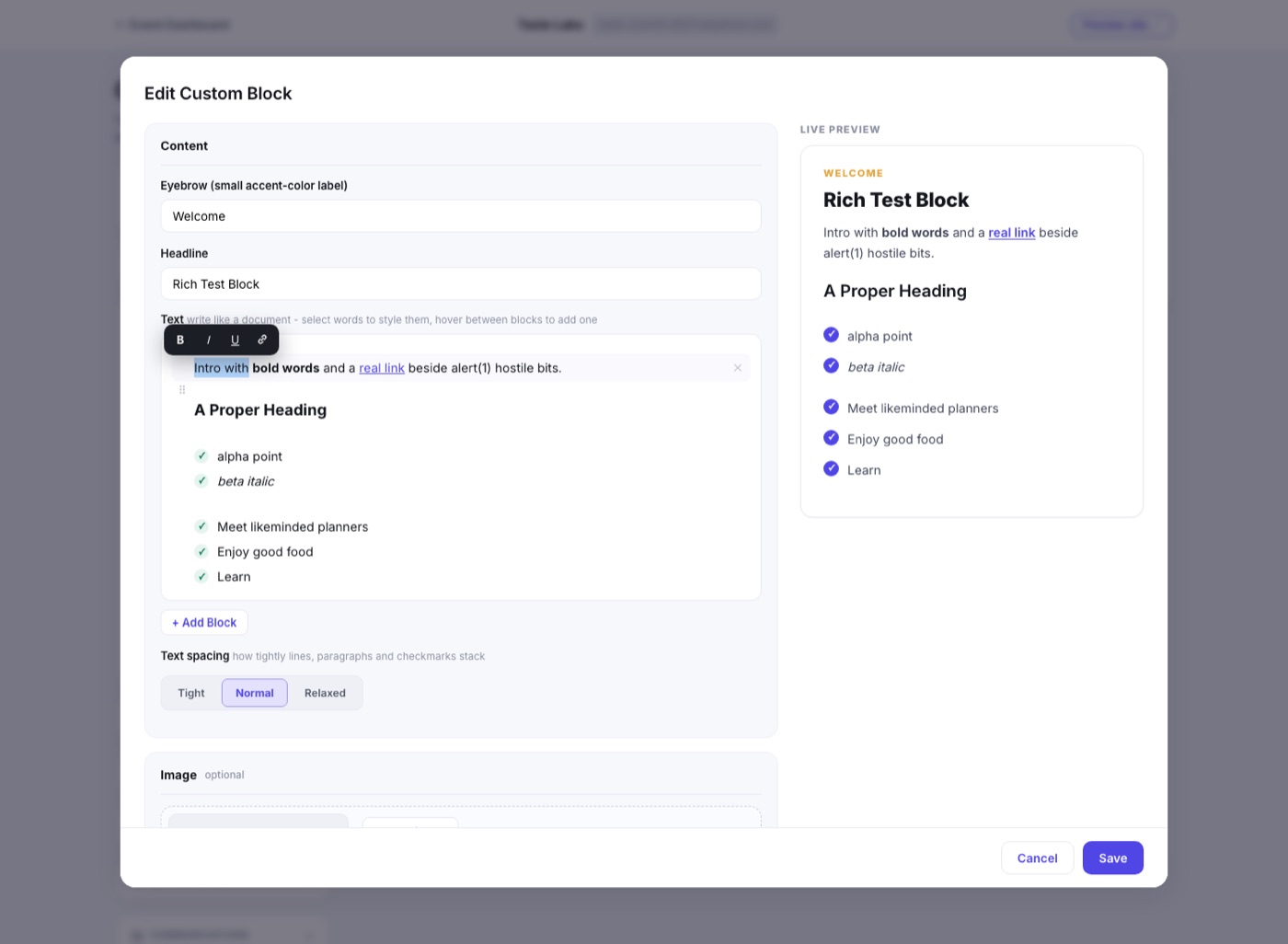
Writing like a document
The text area works like a page, not a form. Write paragraphs and headings right in place, and hover between blocks to reveal + Add Block, which inserts a paragraph, heading, checklist, or numbered list exactly where you are pointing. Drag any block by its grip to reorder.
Styling words
Select any words and a small toolbar floats up beside them: bold, italic, underline, and link. The link button turns the toolbar into a little address box, type the web address, press Enter, done.
The address box has two modes. Web links to a page, and Email turns the selected words into a link that opens a new message to the address you type. Type an email address while Web is selected and it switches to Email for you.
Checklists are the bullet style
Bulleted lists in custom blocks render as your brand's green checkmarks, the same look you see across the site. Use a checklist for highlights and benefits, and a numbered list when order matters.
The live preview
The right side of the editor shows the block exactly as your site will render it: your fonts' hierarchy, your secondary color on the eyebrow, your brand color on the checkmarks. It repaints as you type, so there are no surprises after you save. One Text spacing picker (Tight, Normal, Relaxed) controls how tightly everything stacks.