
A restricted session has a five-digit attendance code. At the end of the session the speaker or moderator reads it aloud, and attendees enter it in the event app to record that they stayed. It replaces a volunteer at the exit, and it works alongside one.
For attendees
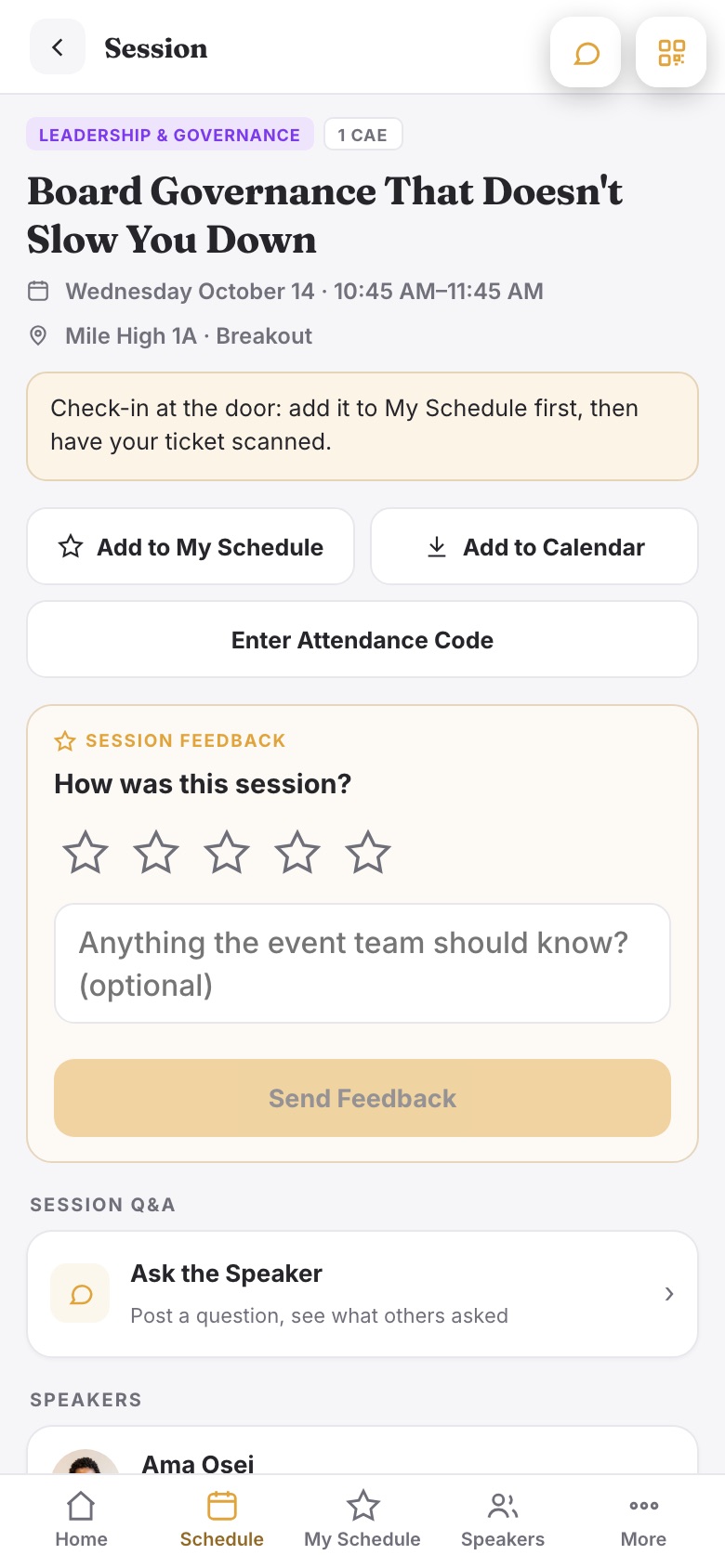
- Open the session in the event app. A restricted session shows its rule under the time, and an Enter Attendance Code button.
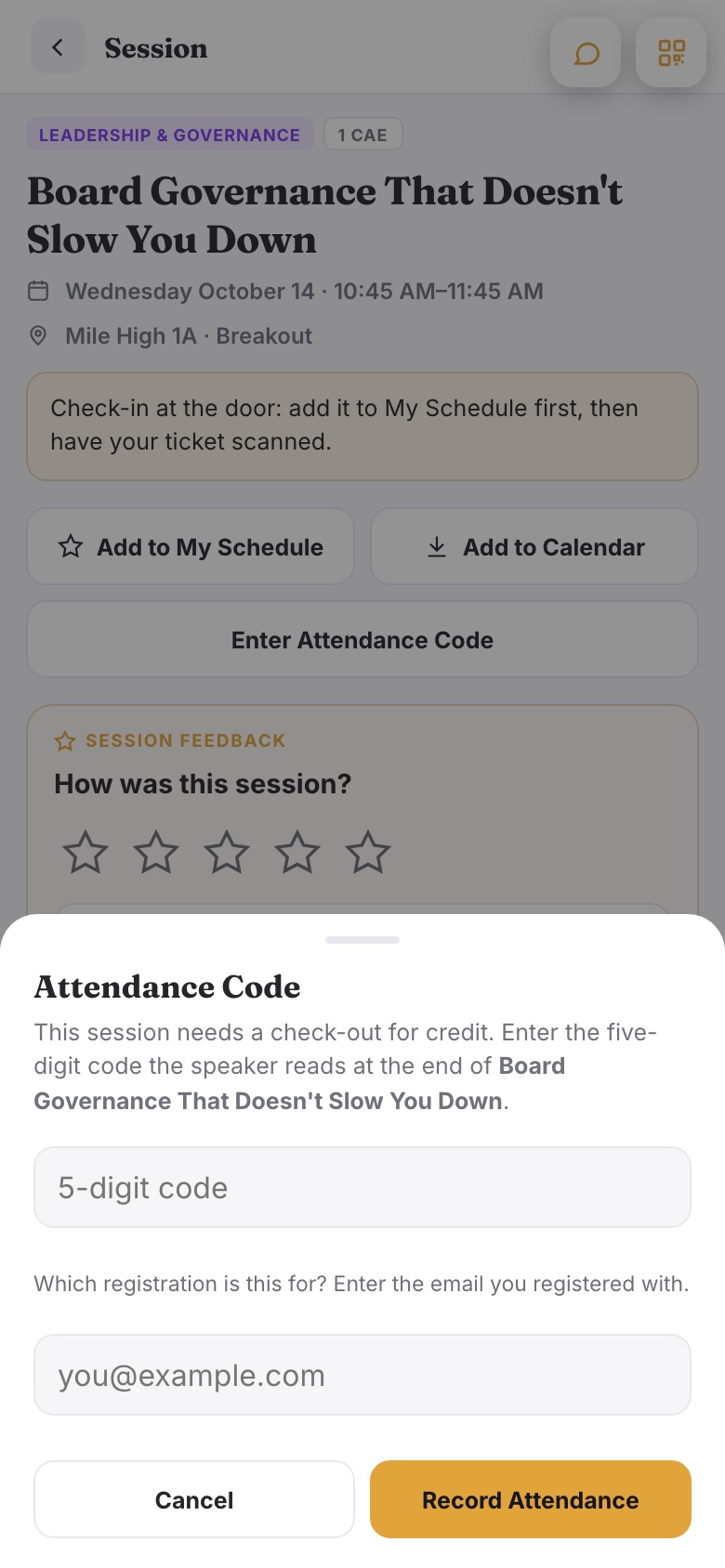
- Type the five digits the speaker read out.
- If the app was opened from the ticket email's Open the Event App link, that is all. Otherwise it asks for the email used to register, so it knows whose attendance to record.
- The button turns to Attendance Recorded.
Where the code lives
- In the Agenda item editor, under Attendance.
- In the event app, on the session screen, for a signed-in moderator (the same moderator link Session Q&A uses).
- On the Session Attendance report, printed in each session's header so a run sheet carries it.
My Schedule and the door
For the My Schedule rule the studio has to know whose schedule it is. That happens on its own when an attendee opens the app from the Open the Event App link on their ticket: their starred sessions are kept with their registration, and the door app checks them when the ticket is scanned. An app opened any other way keeps My Schedule on the phone alone, and the door sees nobody on the list. Tell those attendees to open the app from their ticket email once.