
Sometimes you decide who goes where: a board meeting, an assigned breakout track, a VIP package. Assign Sessions puts everyone already registered against every session on your agenda, so you can place people yourself.
The Grid
- Open the Registration Dashboard and click Assign Sessions above the registrations list.
- Tick the box where a person meets a session to put them in it. The box under a column heading assigns that session to everybody, or to everyone shown once you search or filter.
- Nothing is written until you click Save. Seat limits still apply, and where a session would overflow you are offered Raise Capacity instead of a refusal.
Assigned sessions land on each person's registration, appear on their My Schedule in the event app with a locked star, and count at the door for any session limited to the people registered for it.
Session Groups
A Session Group is a set of sessions you hand out together, such as everything a VIP gets. It is a shortcut for ticking boxes, not a membership: nobody is recorded as being in a group.
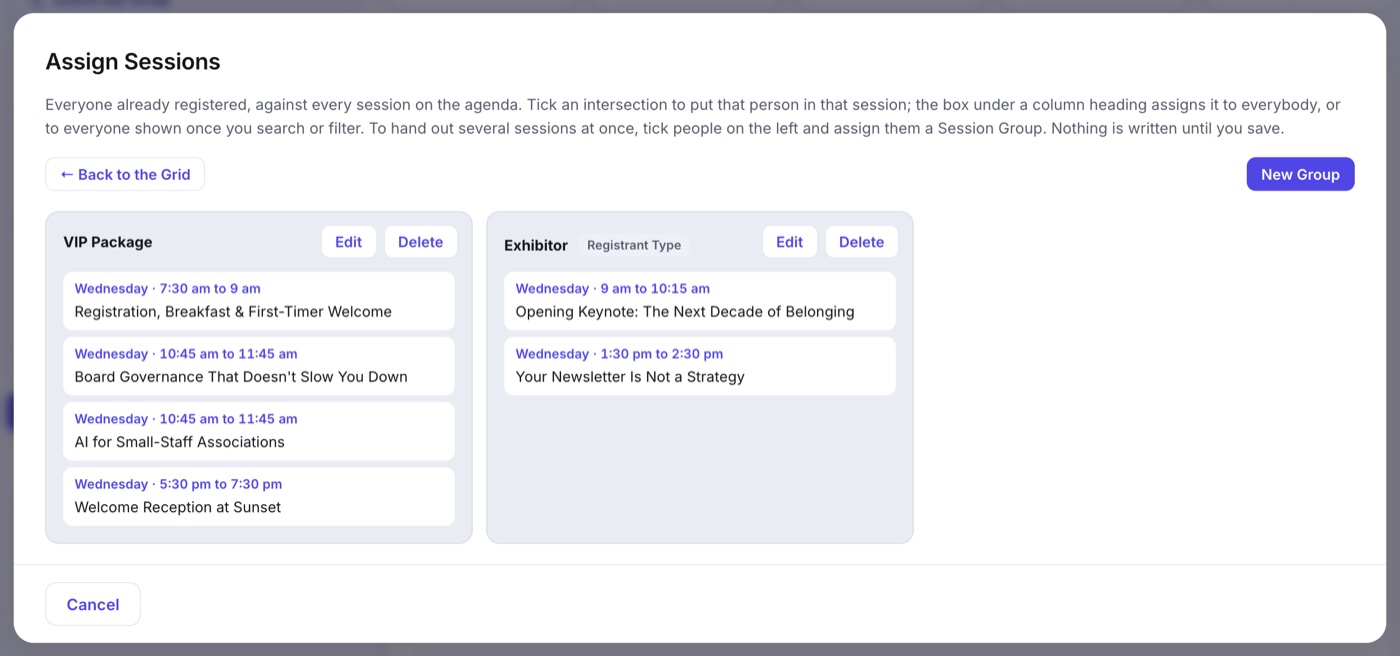
- In Assign Sessions, click Build Session Groups (or Edit Groups once you have some), then New Group.
- Under Name It For, pick A Registrant Type (its name follows the type if you rename it) or A Name of Your Own, such as VIP Package.
- Click Choose Sessions, pick them, and click Create Group.
- Back on the grid, tick the people on the left, pick the group from Choose a Group, and click Assign Group. Then save.
- Assigning a group only ever adds sessions. To take one away, untick it on the grid.
- Editing or deleting a group changes nobody's registration: sessions already handed out stay.
- No registrations yet? Assign Sessions opens straight on the group builder, so you can set groups up in advance.
- Duplicating an event copies its Session Groups along with the agenda.