
Agenda and Sessions opens on the Calendar: your event days side by side as columns, every scheduled session sitting on the hour it runs. Switch to List whenever you would rather read the schedule than arrange it. Both views hold the same sessions.
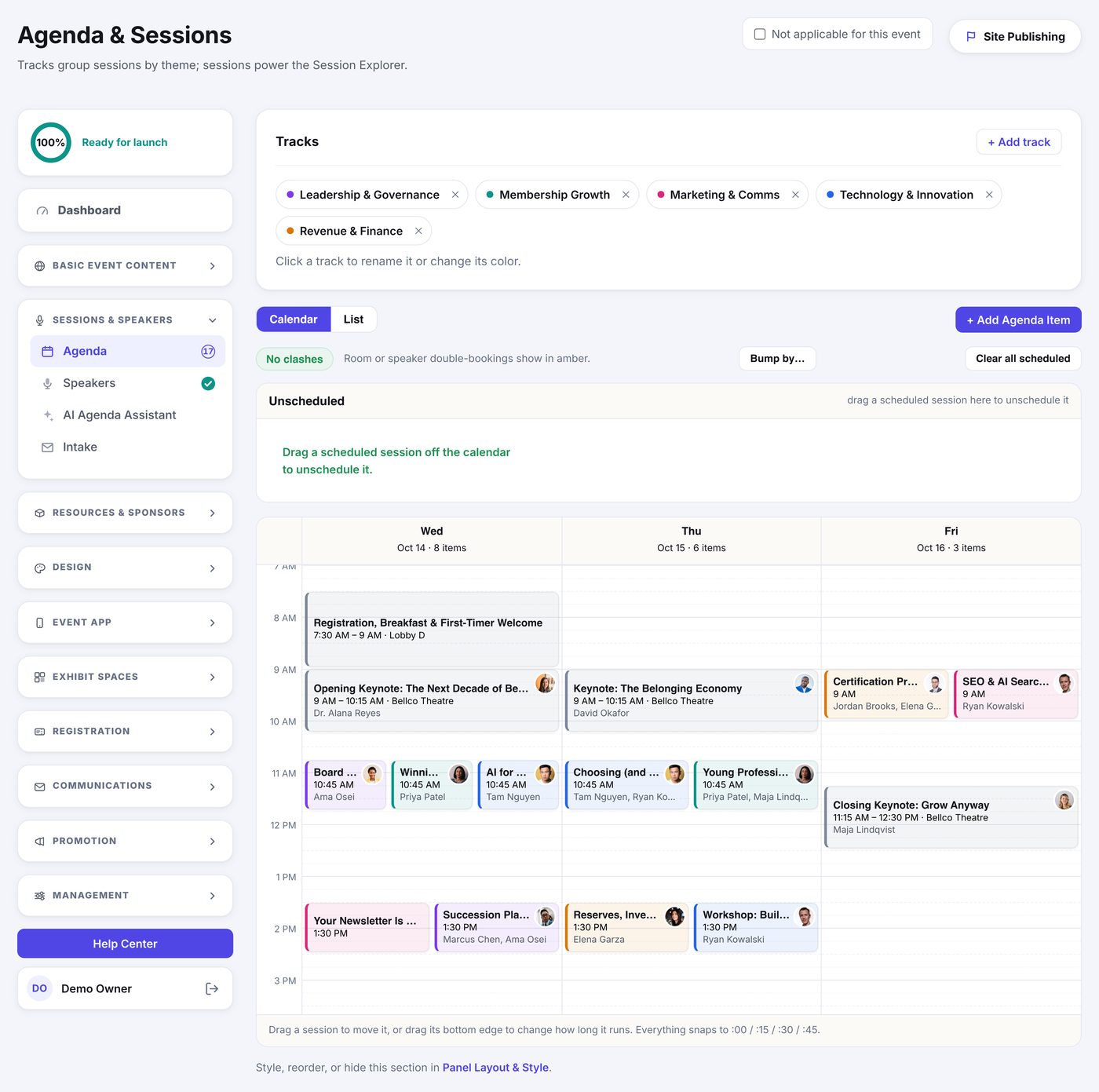
Unscheduled
Every session without a date waits in the Unscheduled pen at the top: sessions you added but have not placed yet, and proposals your speakers submitted through the Speaker Portal. Drag one onto a day to schedule it. Scheduling a speaker's proposal approves the speaker along with it. Or review it first on Portals › Portal Applications: approving an application there approves its sessions, which then wait in the pen for a time.
It works the other way too. Drag a scheduled session up into the pen and it goes back to having no date, keeping everything else about it. Clear all scheduled empties the whole grid into the pen when you want to start the layout again.
Arranging the day
- Drag a session to move it. Everything snaps to :00, :15, :30 and :45.
- Drag the bottom edge of a session to change how long it runs.
- Click anywhere on a session to open its full editor.
- Sessions take their color from their track, so a day's shape is readable at a glance.
Clashes
A pill above the grid reads No clashes until something collides. Two sessions in the same room at the same time, or two sessions sharing a speaker, both turn amber and wear a small marker naming which kind of clash it is. Nothing is blocked: sometimes you genuinely mean it. It just never happens quietly.
Moving everything at once
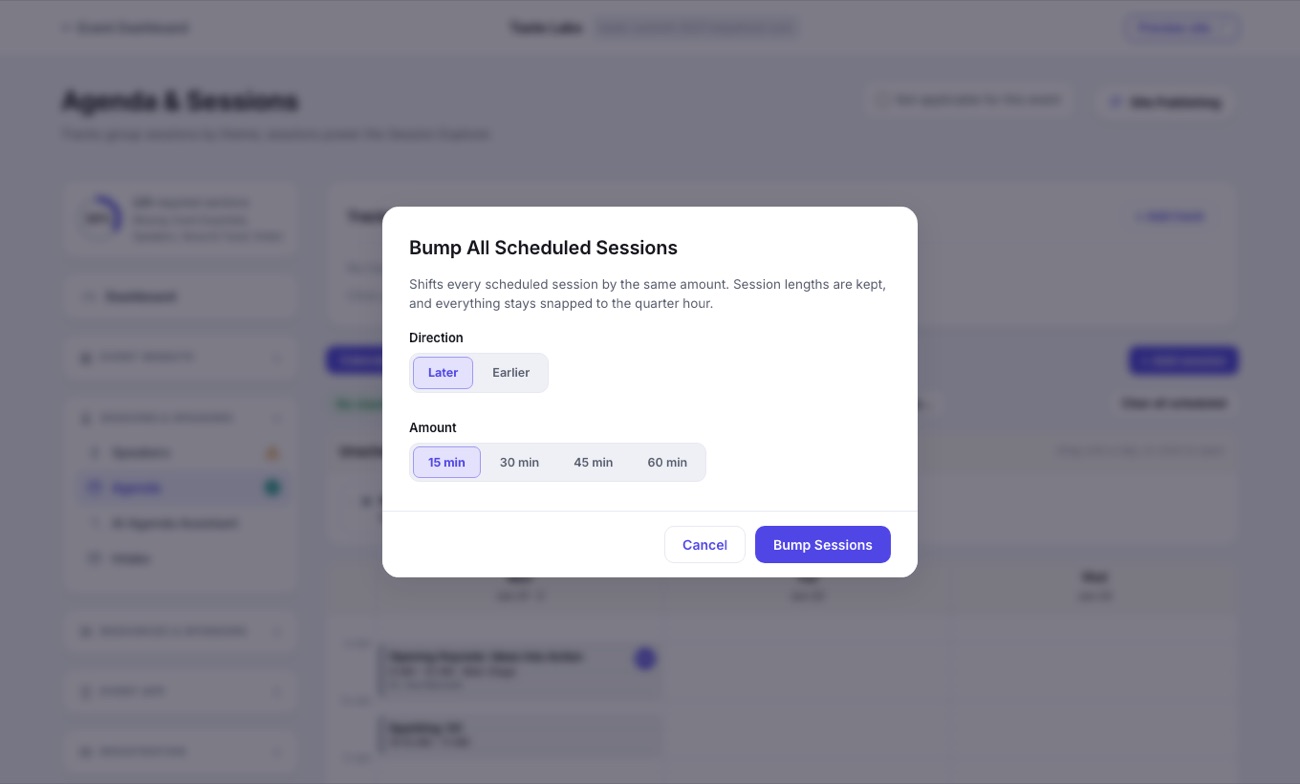
When the whole day shifts, use Bump by rather than dragging every session. Pick Later or Earlier and 15, 30, 45 or 60 minutes, and every scheduled session moves together, keeping the length it had.
Inside a session
Clicking a session opens the editor: the title, its track and type, the description, where it happens, when it runs and for how long, and any credits it carries. The Where row builds itself from rooms you have already used, so the second session in Bellco Theatre is one click. Scheduling is a Runs for duration rather than an end time, which is how people actually think about a session.
Session Content at the bottom is a set of tabs with counts on them: Speakers, Sponsors, Documents and Videos. Documents and Videos each let you either upload something for this session alone or tick items already in your library. A session can credit up to three sponsors, and their logos ride along with the session everywhere it appears, on the site and in the app.