
Print Badges takes the design you built and lays it out six to a letter sheet on Avery 4x3 stock. Everything on this page is about two things: choosing the right people, and getting the badges to land inside the frames on your paper.
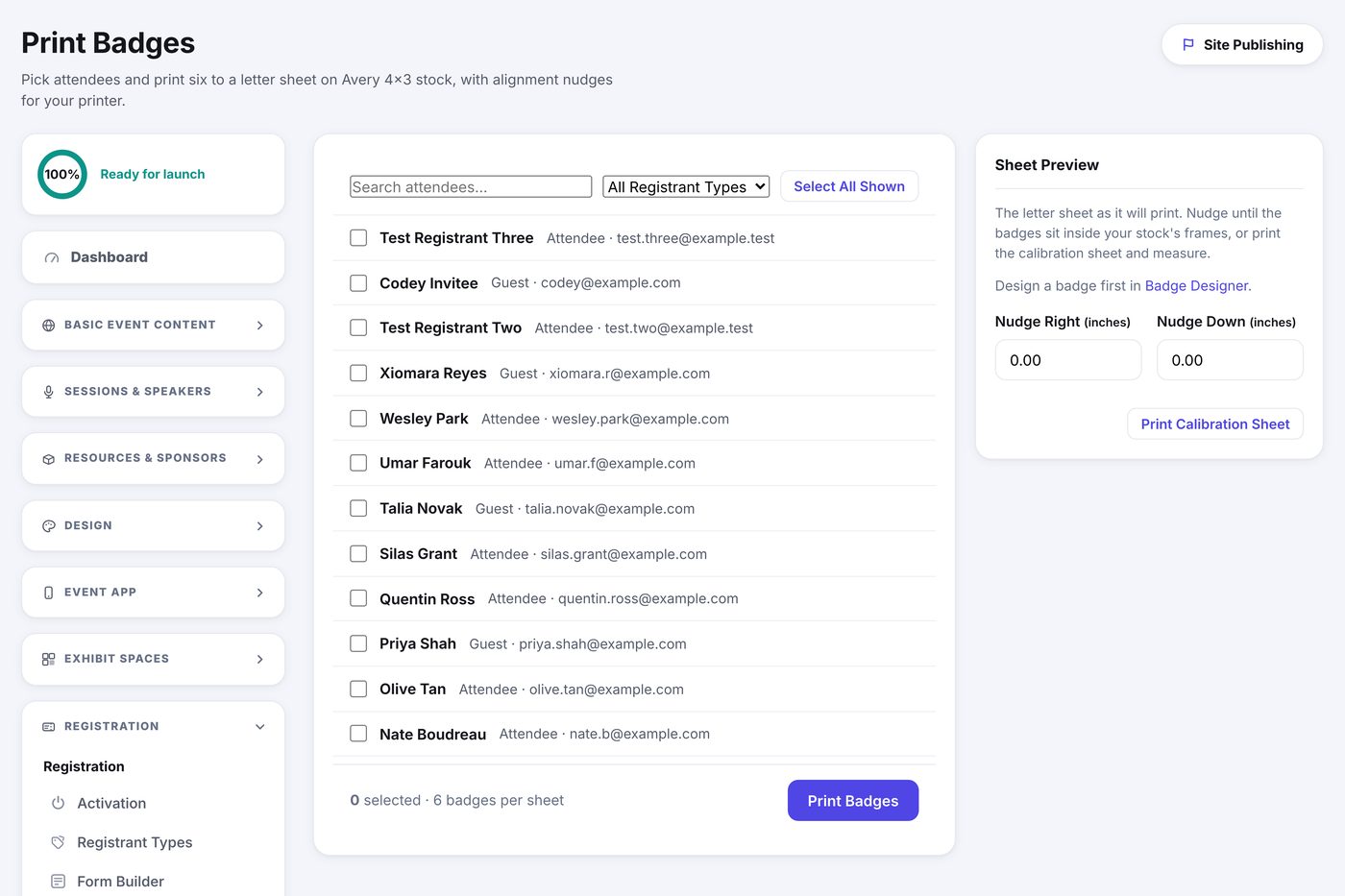
Choosing who to print
- Open Registration, then Print Badges.
- Search by name or email, or filter to one registrant type.
- Tick the people you want, or click Select All Shown to take everyone the filter is showing.
- Click Print Badges. Six go on each sheet and the rest carry on to the next.
Lining up your stock
Every printer feeds paper a fraction differently, so the sheet preview on the right shows exactly where the badges will land. Nudge until they sit inside your stock's frames.
- Click Print Calibration Sheet. It prints one page of empty badge outlines.
- Hold it against a real sheet of your stock and see which way it is off.
- Type the correction into Nudge Right and Nudge Down, in inches. Negative numbers move the other way.
- Print the calibration sheet again and check. Once it lines up, your nudges are saved and every print uses them.