
Nothing about a decision reaches a speaker until you release it. You can record outcomes over days, change your mind, and only then send them out together, each with its email. The decision page is Call for Proposals › Decisions.
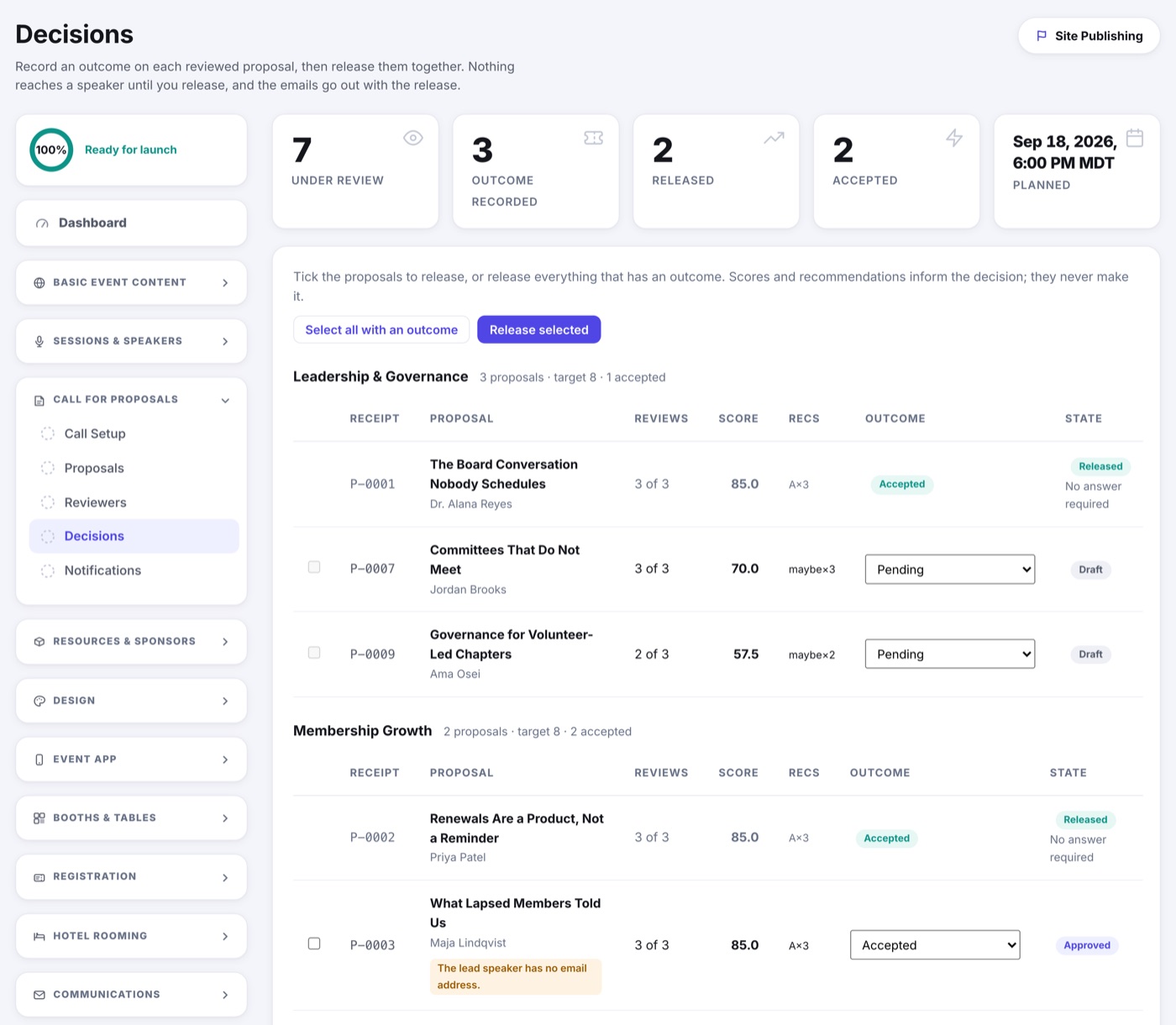
Record outcomes
- Pick an outcome on each row: Accepted, Accepted with changes, Waitlisted or Not selected. Each category shows its target so you can see when you are over it.
- Click Edit to write the message the speaker will read, the changes you want if you accepted with changes, a date by which an accepted speaker must confirm, and a private rationale for your own record.
- Tick the proposals to release, or Select all with an outcome, then Release selected.
The release preview lists every speaker who will be emailed and shows the email itself. A proposal short of its review target needs a reason before it can go; the reason stays on the record. You can release now or pick a date and time, and a scheduled release can be pulled back until it runs.
After the release
- An accepted speaker sees the outcome in their portal and, if you set a date, is asked to accept or decline the offer by then. Their answer, with any note, shows on the Decisions page and reaches you by email.
- An accepted session becomes approved in your Agenda and can be dragged onto the calendar. Before that, the bullpen will not schedule a proposal's session: acceptance is decided here, not on the calendar.
- A not-selected proposal's session leaves the bullpen; the Agenda's list view keeps them in a fold.
- The speaker's own approval follows the decision, so an accepted speaker lands on the wall without a second approval on the Speakers page.
Notifications
Call for Proposals › Notifications is every email the call sends. The delivery log shows each message with its state; a failed one can be retried without touching the decision it announced. Templates lets you rewrite any of them in your own words with tokens for the event, the proposal and the speaker, with a live preview as you type; a decision template must keep the outcome and the portal link. Write to People sends one message to a filtered set of speakers or reviewers, and shows you who and how many before it goes. Its Insert a variable chips drop in first name, event name, submission deadline, reviews due, time zone, organizer and the portal link; writing to speakers adds the proposal title and receipt number. Each person gets their own values.
Exports
The Export button on the Proposals page offers three spreadsheets, each as CSV or XLSX: Proposals (everything at its current revision, including speaker contact details, logistics and your private notes), Reviews (one row per submitted review with every criterion's score, the recommendation and the committee's comments) and Program (accepted sessions with public speaker fields and the schedule; nothing private, safe to share). Each download is noted in your activity log.