
Scanning replaces the business-card pile. Two attendees hold up their phones, one scans the other's QR badge, and the contact lands in a list they can export later.
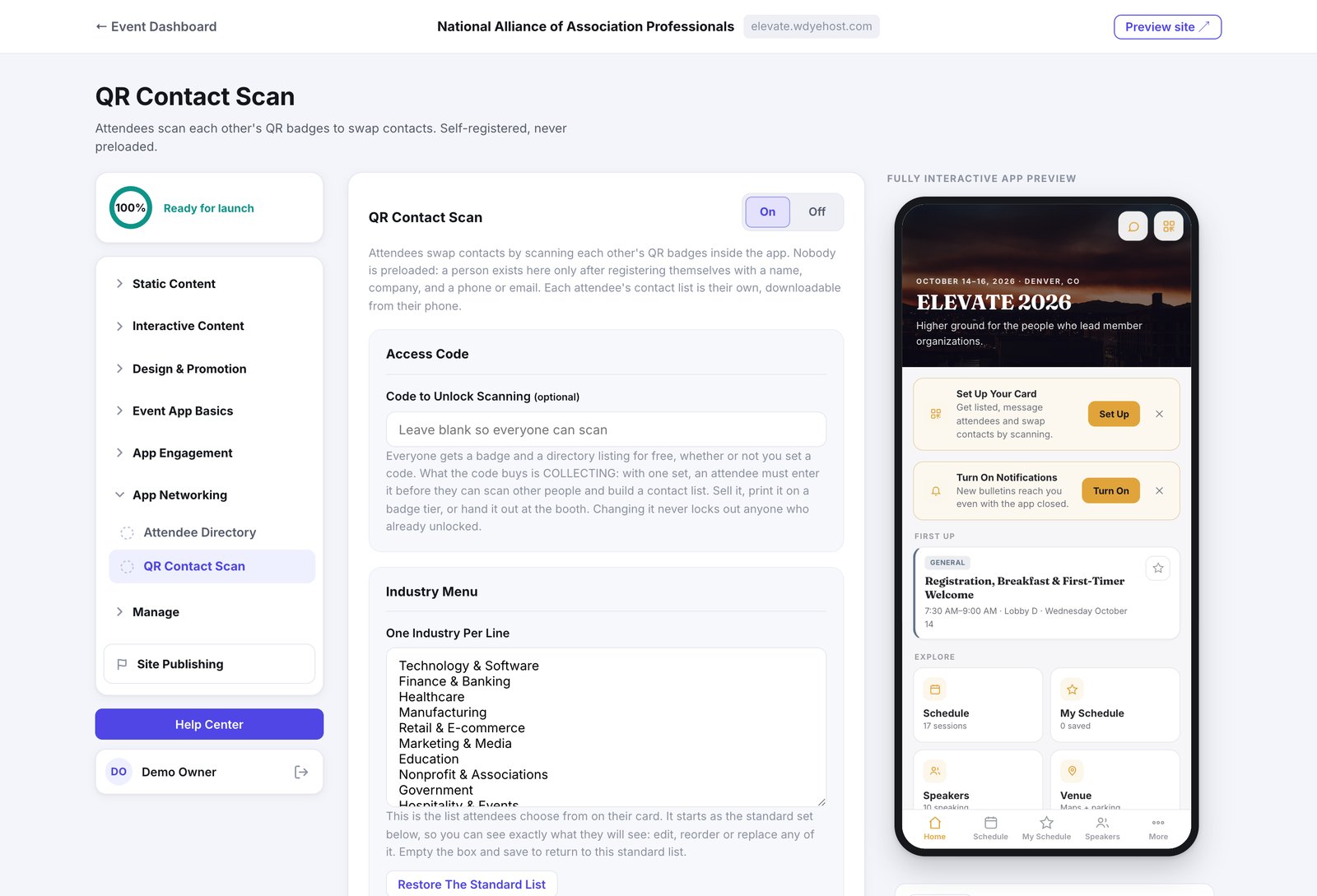
- Open App Networking › QR Contact Scan.
- Switch it On.
- Edit the Industry Menu if the standard list does not fit your audience.
- Nobody is preloaded. A person exists here only after setting up their own card with a name, company, and a phone or email. In the app the button reads Set Up My Card.
- A scan is one-directional: scanning someone adds them to your list, not the other way round.
- Each attendee's contact list is their own, and they can download it from their phone.
- A badge can also be scanned with the phone's own camera, which opens the app on the same contact.
Charging for it
The optional Code to Unlock Scanning is how you can sell contact collecting. Everyone gets a badge and a directory listing whether or not you set a code. What the code buys is collecting: with one set, an attendee must enter it before they can scan other people and build a list.
One badge, every browser
On an iPhone, Safari and Chrome keep separate storage, so a person who sets up their badge in one and later opens the app in the other could end up with two half-badges. The app catches this: when someone enters an email or mobile number that already has a badge at your event, it offers to connect instead of creating a duplicate.
- A six-digit code goes to the email already on the badge; entering it links the new browser to the same badge.
- QR code, collected contacts, and messages all carry over; the original browser keeps working too.
- Verification is required on purpose. Typing someone else's email shows nothing and takes nothing over.
How it is going lives under Day Of › Networking Activity › QR Scan Activity: cards created, how many unlocked scanning when you set a code, how many people scanned, and how many contacts changed hands. Counts only, never a list of people.